Configuring the C/C++ Extension in VSCode (macOS)
Overview
After the college entrance exam ended, some classmates around me who are headed for computer science departments were getting ready to start grinding away at C/C++, and they ran into configuration problems while using VSCode on macOS. I'm writing a short article here to record the process.
The goal of this article is to configure Cpptool so that VSCode can automatically compile and debug single files.
Environment
- Operating system: macOS 11.5.2
- Computer: MacBook Pro (15-inch, 2018)
- VSCode version: 1.59.0 379476f0e13988d90fab105c5c19e7abc8b1dea8
- Cpptool version: ms-vscode.cpptools v1.5.1
Steps
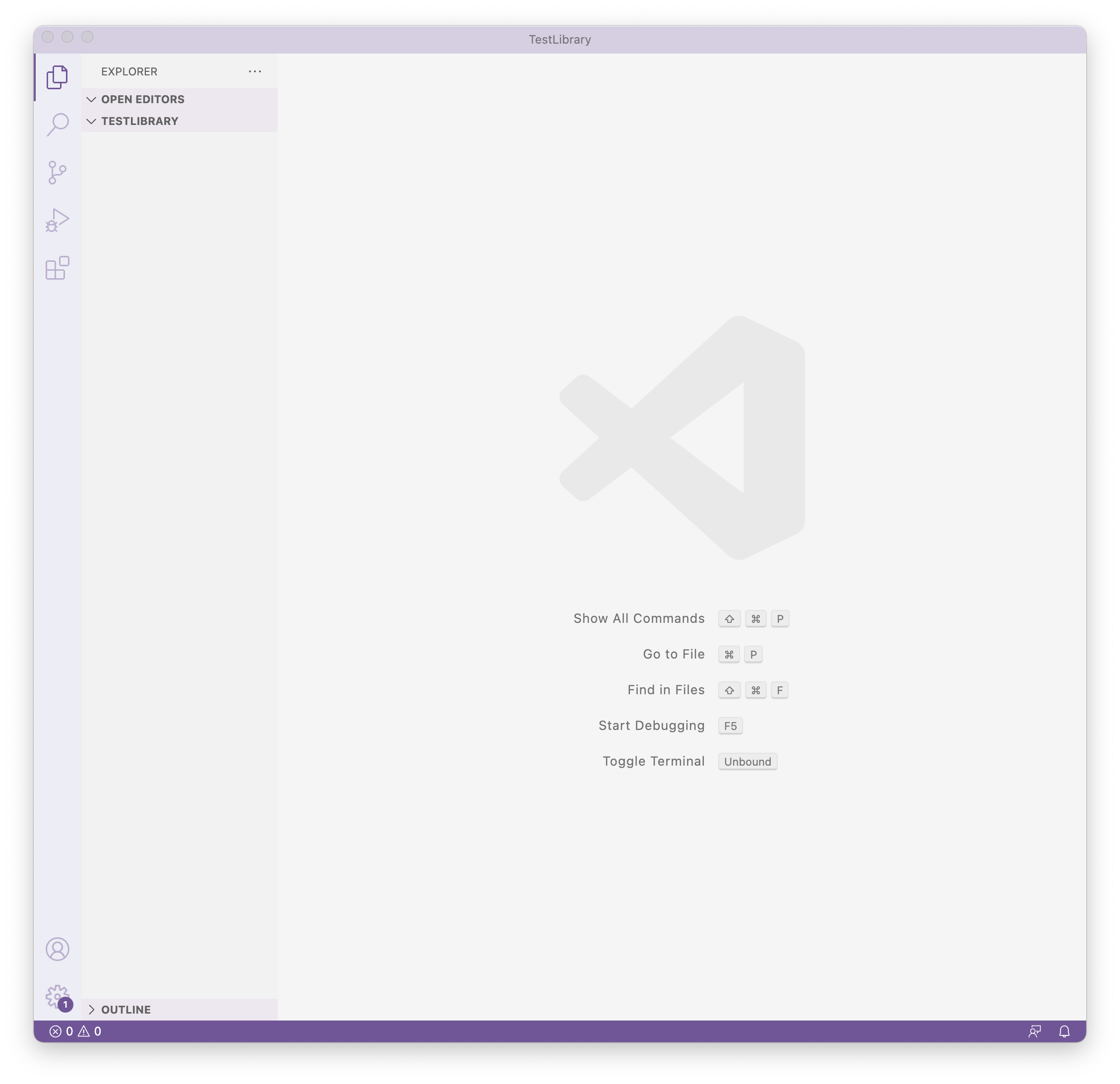
Step 1 - Open Visual Studio Code, and open a folder.
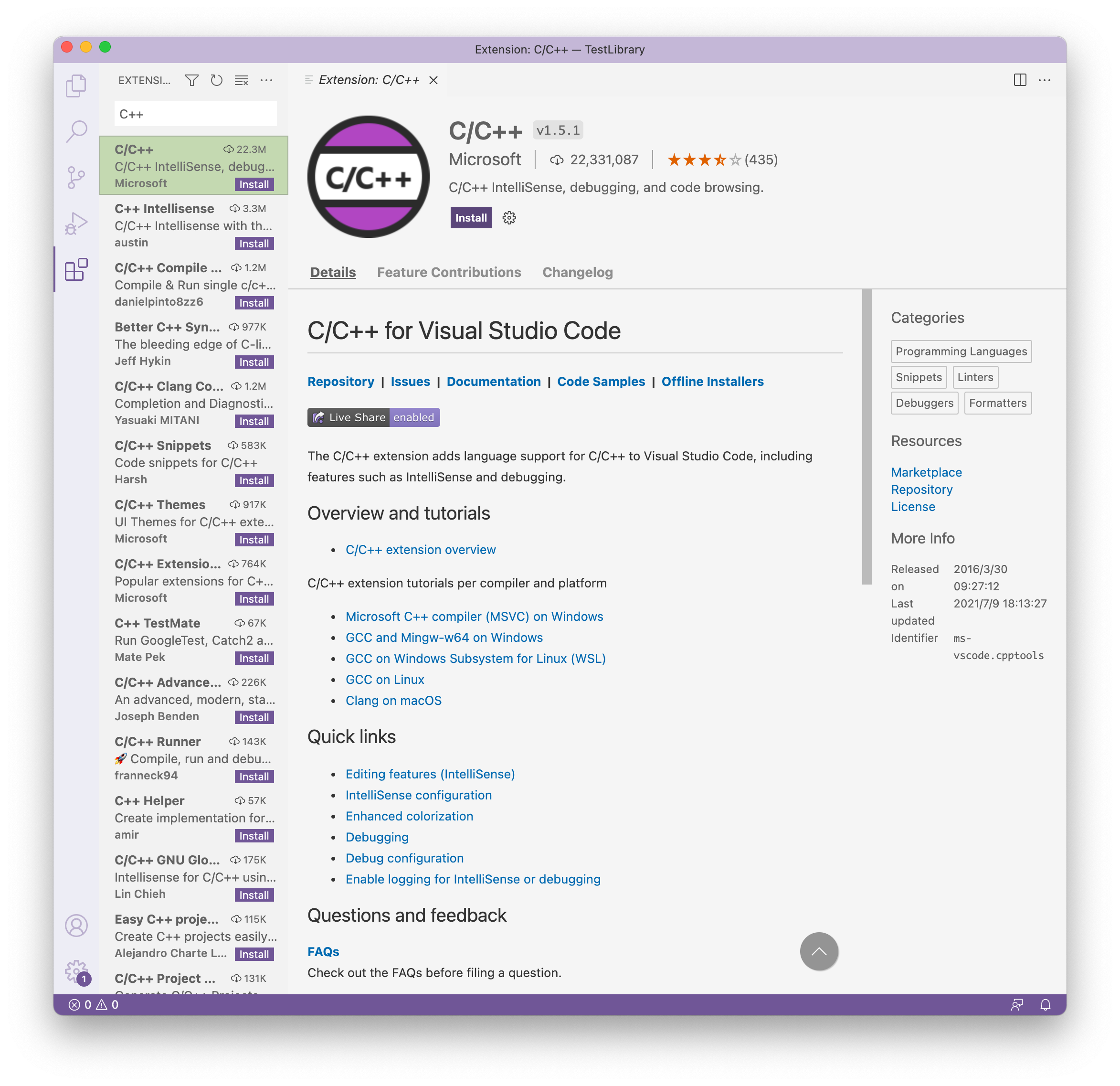
Step 2 - Open the Extensions view, search for C++, and install Cpptool.
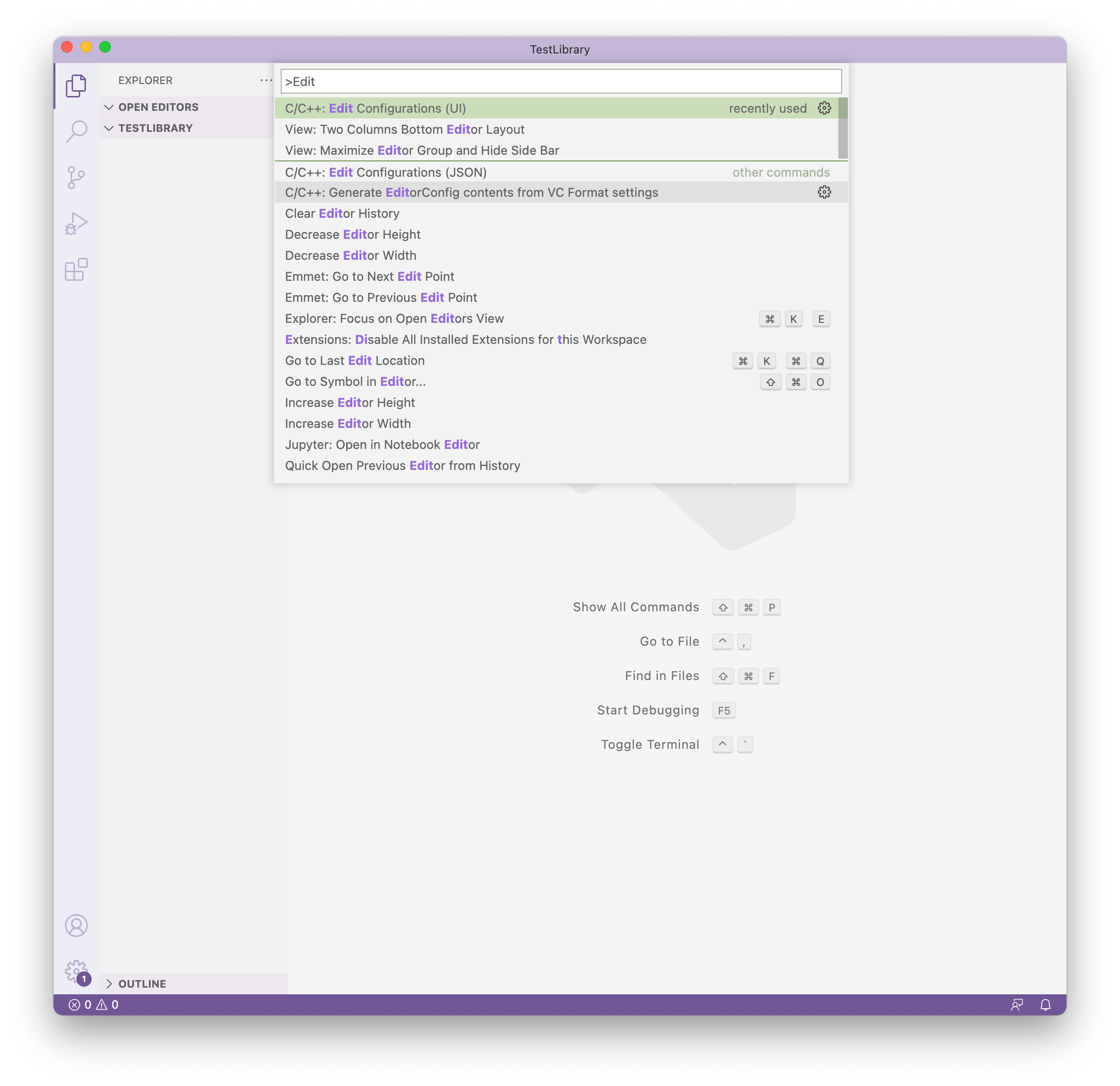
Step 3 - We now need to configure the compiler location and IntelliSense. IntelliSense is a code-writing tool that is aware of your code. Press F1 to open VSCode's Command Palette, type C/C++: Edit Configuration(UI), and run it.
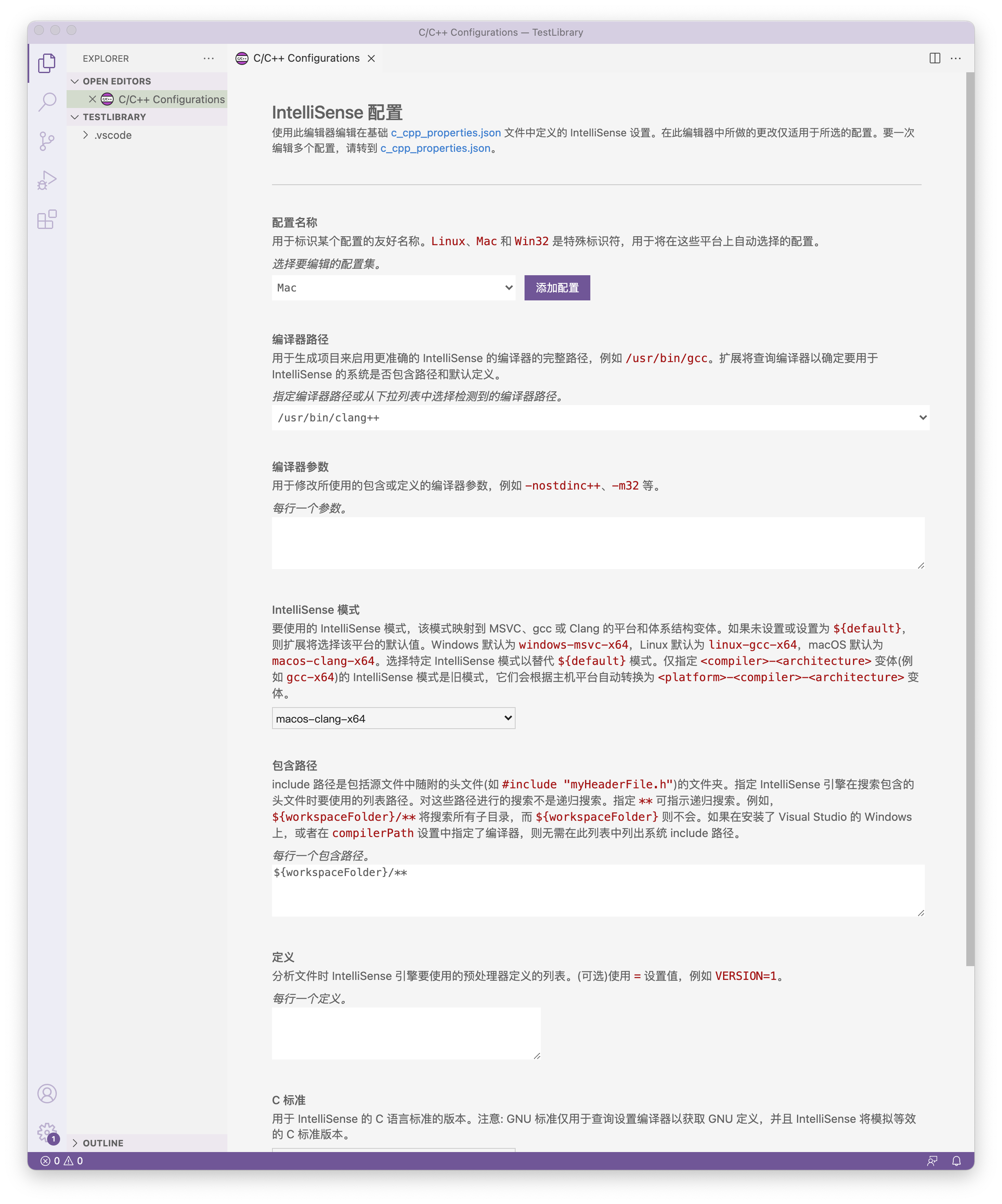
Since macOS no longer supports running 32-bit apps, we configure it the macOS-clang-x64 way. Configure it as shown in the screenshot, and you can see that a .vscode subdirectory has appeared in the working folder, containing the C/C++ configuration for this working directory, c_cpp_properties.json:
{
    "configurations": [
        {
            "name": "Mac",
            "includePath": [
                "${workspaceFolder}/**"
            ],
            "defines": [],
            "macFrameworkPath": [],
            "compilerPath": "/usr/bin/clang++",
            "cStandard": "c17",
            "cppStandard": "c++17",
            "intelliSenseMode": "macos-clang-x64"
        }
    ],
    "version": 4
}
Step 4 - Now we start configuring C/C++ compilation. VSCode supports automated task execution, so we use this feature to automate our compilation.
Create a new HelloWorld program for testing. In this article we take configuring clang++ as the example.
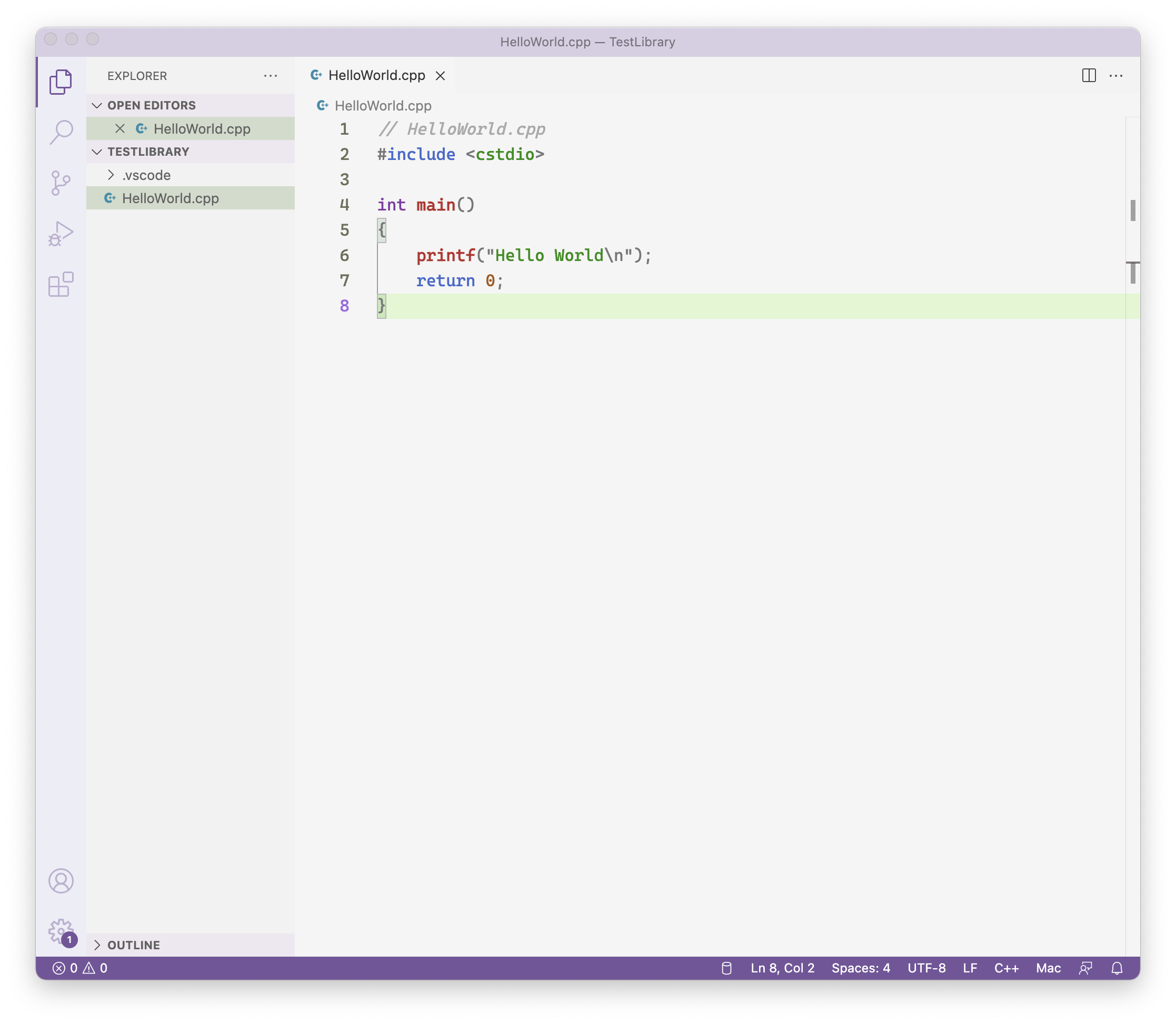
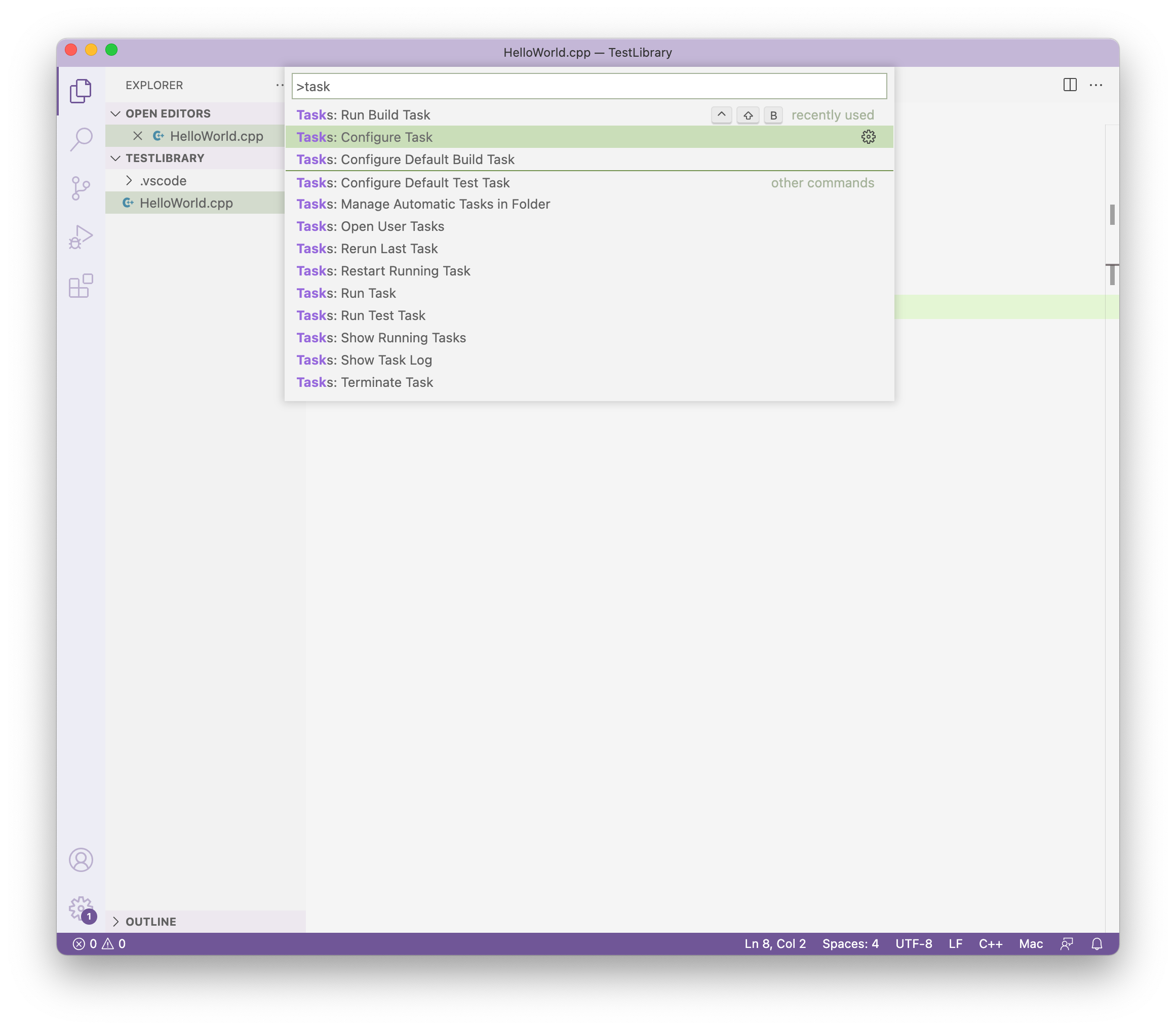
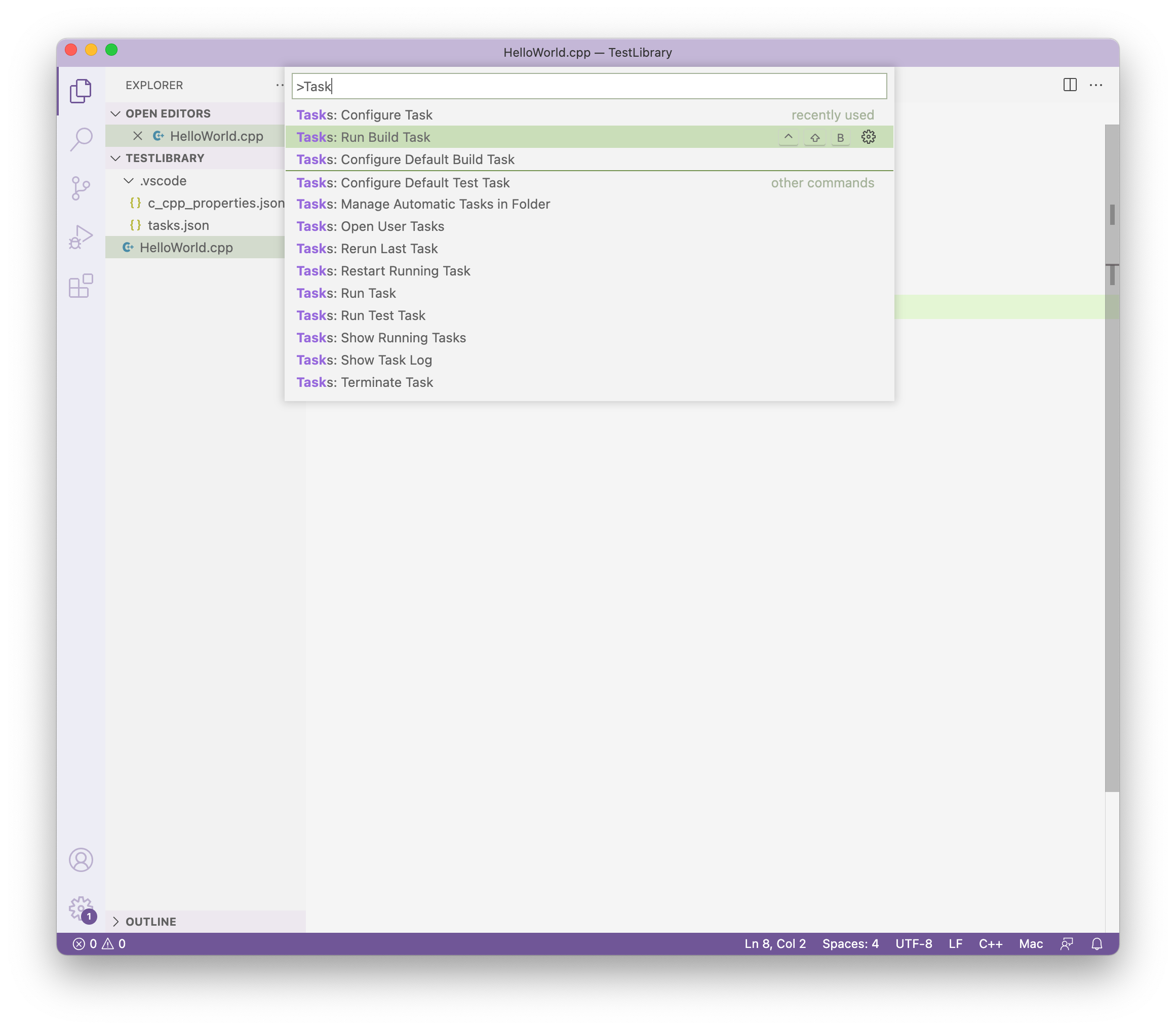
Press F1, type Task, find Configure Task, and open it.
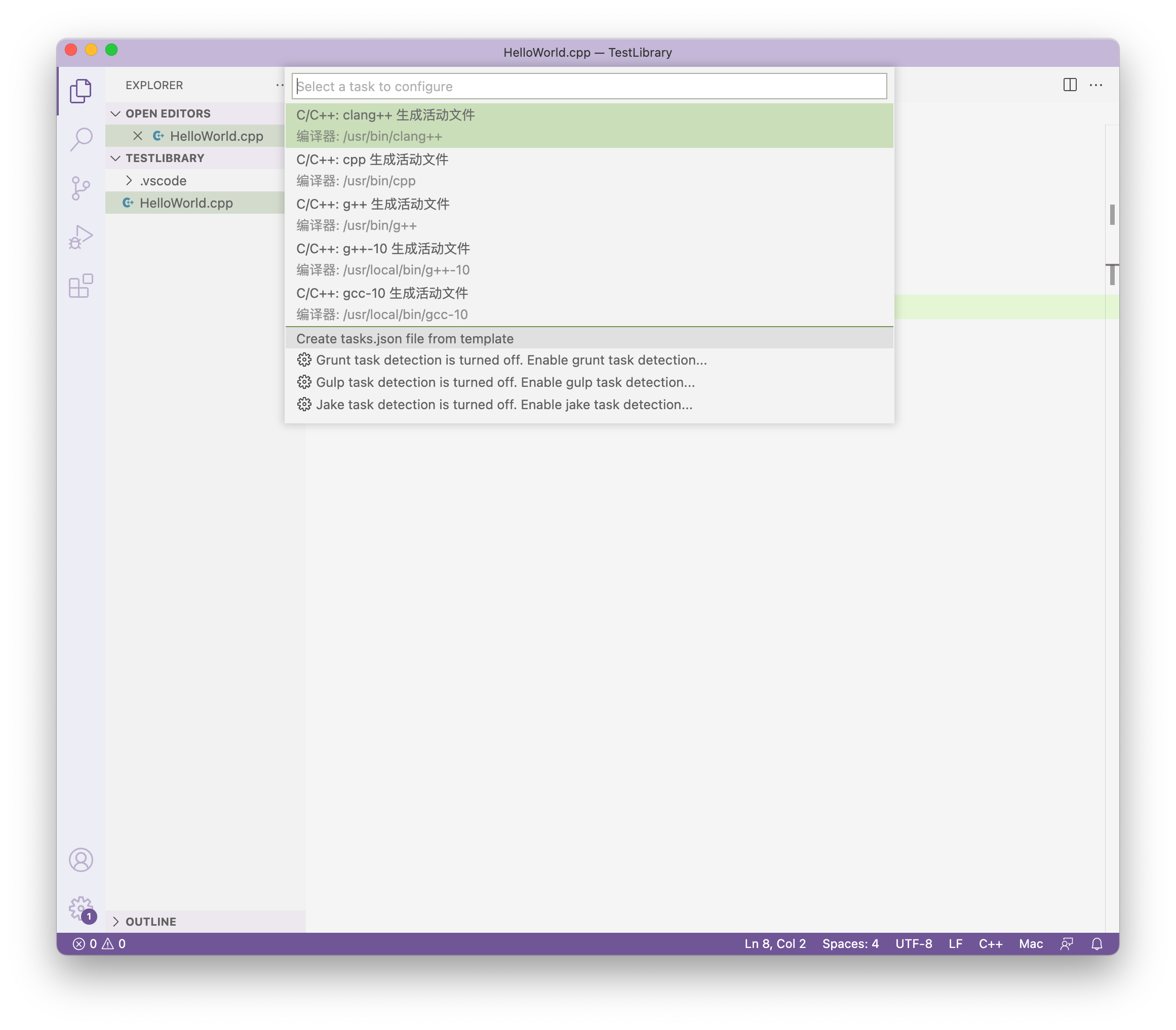
Select Clang++ build active file.
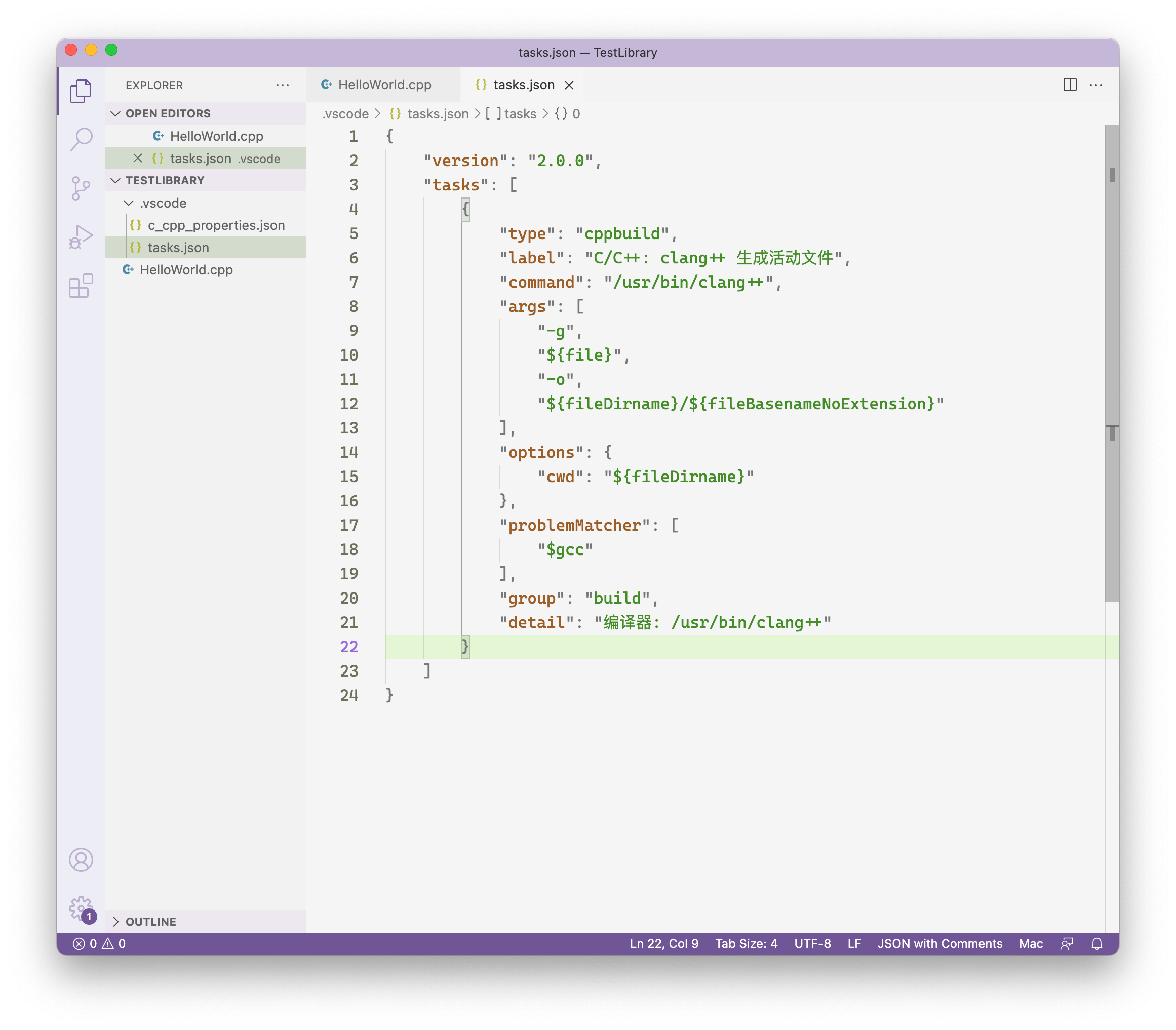
The .vscode/tasks.json file records how tasks are run in this directory, as shown:
Then go back to HelloWorld.cpp, press F1, find Run Build Task and open it, and select Clang++ build.
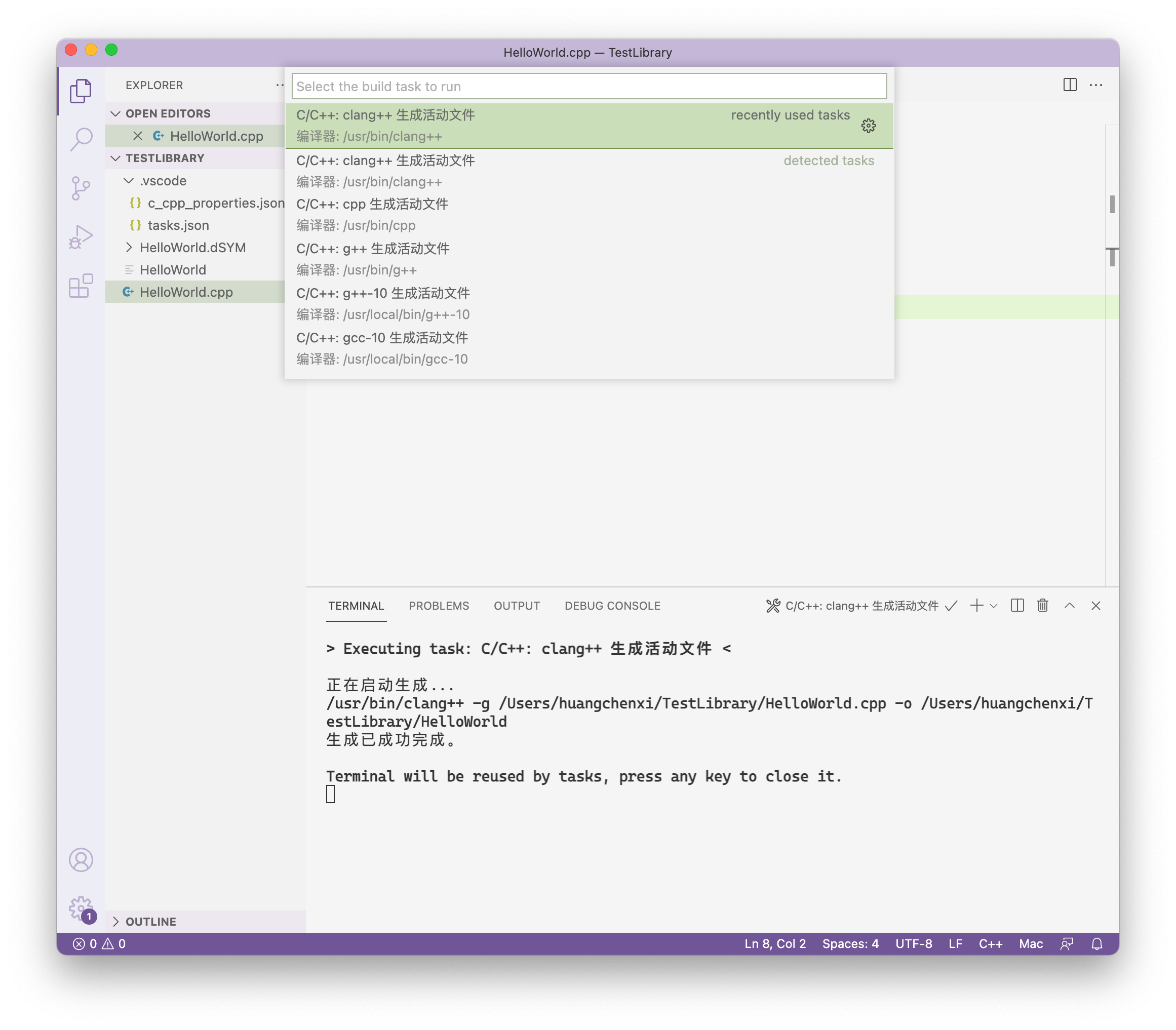
The build configuration is done.
Step 5 - Now we configure debugging. Go to VSCode's Run and Debug view:
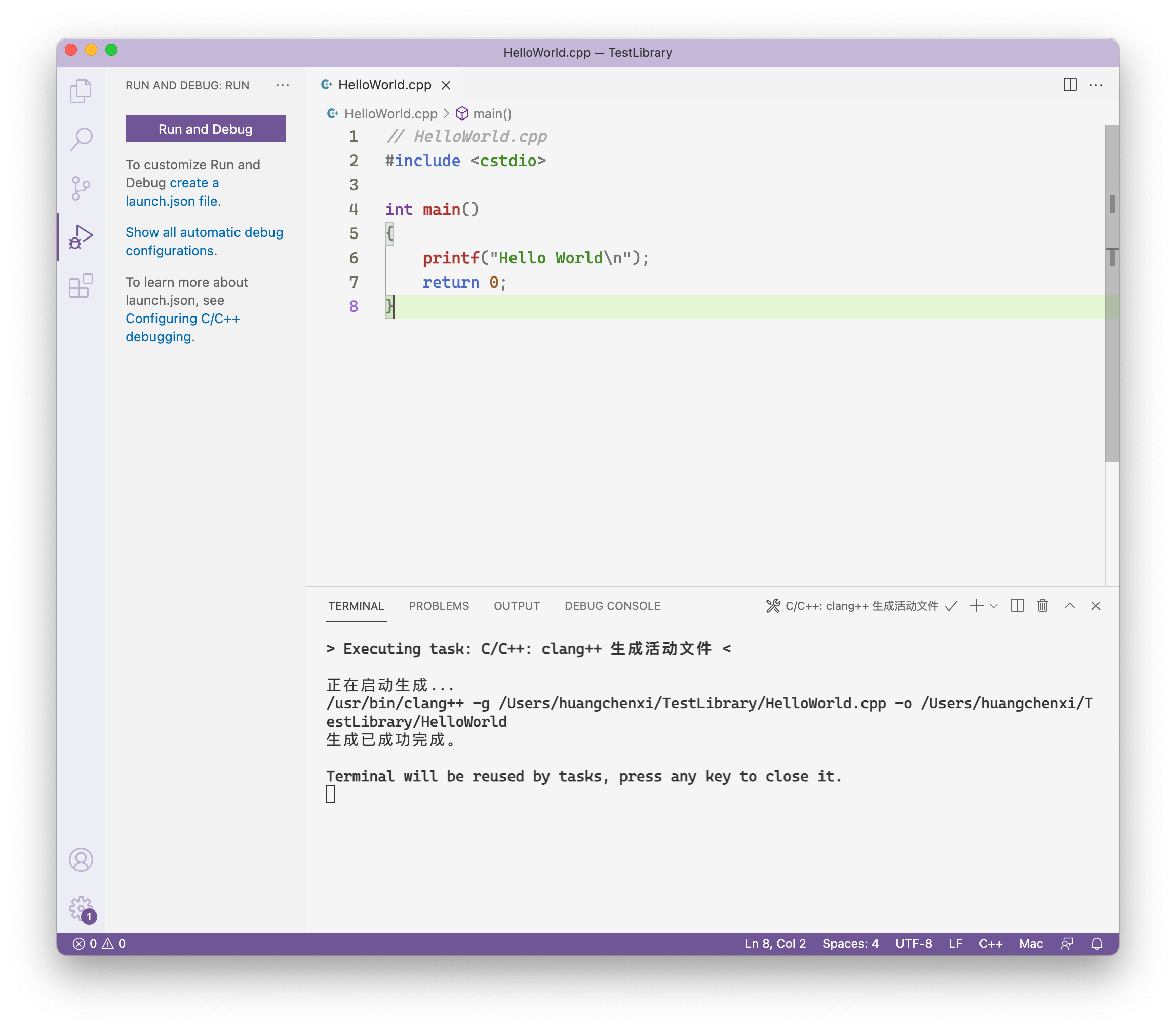
Click “create a launch.json file” and choose “C++ (GDB/LLDB)”:
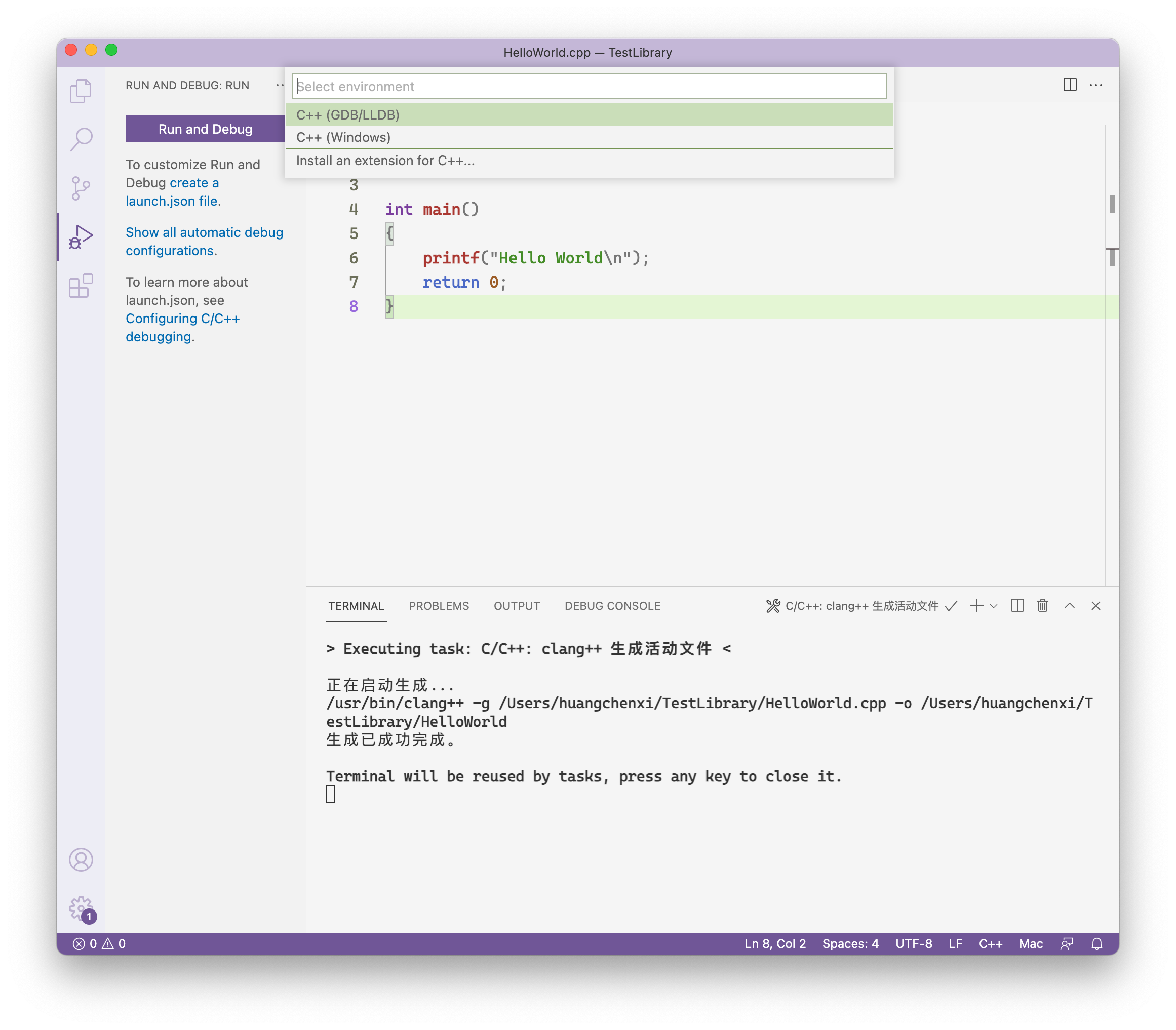
Choose Clang++, and it will then start debugging. Back in .vscode/launch.json, we can see the debug configuration that was just generated.
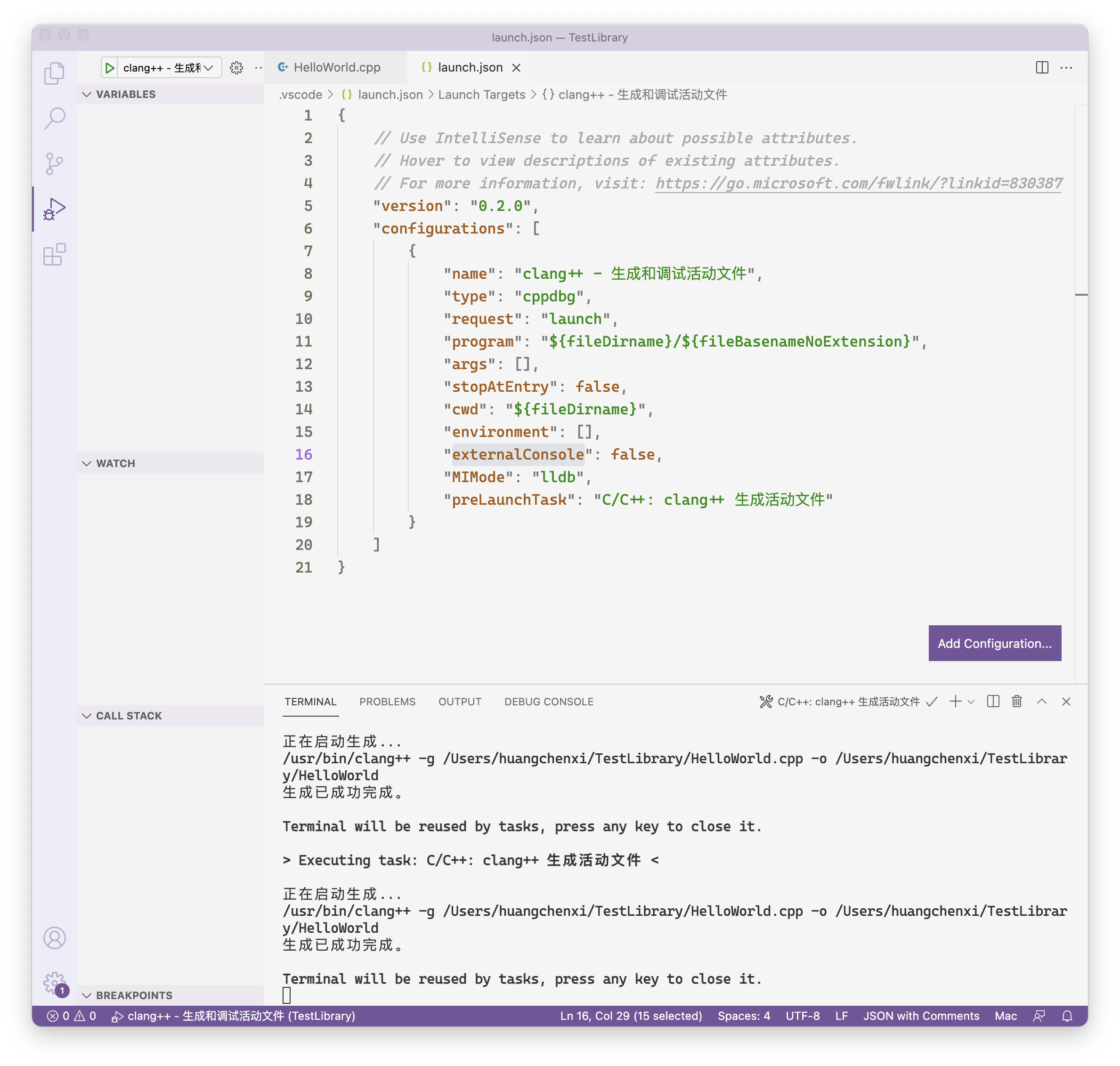
Here, I recommend that you set the externalConsole option to true to enable the external debug window.
That's the end of the configuration.
那大师可以教我C++吗 qaq
qwq learningman 又假假
externalConsole设置为 true
大师!!!
大师呀大师 你的教程过期了捏!