---
id: 2855
lang: en
translation_of: index.md
source_sha256: c16c3326eaeecd9400da65cdf405225a9ff4d657a9f2a3c85bde6625dd3d9be5
title: "Configuring the C/C++ Extension in VSCode (macOS)"
description: "After the college entrance exam, some classmates headed for CS began grinding away at C/C++ and ran into configuration problems using VSCode on macOS."
tags: ["VSCode","Configuration","Cpptool"]
translated: 2026-11-27
translator: Claude Opus 5.5
translator_model: claude-opus-5-5
translation_notes:
- "计算机系的同学 (classmates of the computer science department) rendered as “classmates who are headed for computer science departments”, since they had just finished the gaokao."
- "打开插件(Extension) rendered as “Open the Extensions view”: the parenthetical only gave the English name of 插件, so it was folded into the official VSCode name instead of being repeated."
- "VSCode 的快捷命令行 (VSCode's quick command line) rendered with the official name, “Command Palette”."
- "Clang++ 生成活动文件 rendered with the official English label of the cpptools task, “Clang++ build active file”; the later 选择 Clang++ 生成 as “select Clang++ build”."
- "VSCode 的调试模式 (VSCode's debug mode) rendered with the official name, “the Run and Debug view”, which is what the screenshot shows."
- "键入 F1 (type F1) rendered as “press F1”."
- "Alt text 截屏2021-08-21 下午3.13.01 etc. translated literally as macOS's English screenshot names, “Screenshot 2021-08-21 at 3.13.01 PM”."
---
## Overview
After the college entrance exam ended, some classmates around me who are headed for computer science departments were getting ready to start grinding away at C/C++, and they ran into configuration problems while using VSCode on macOS. I'm writing a short article here to record the process.
The goal of this article is to configure Cpptool so that VSCode can automatically compile and debug single files.
## Environment
- Operating system: macOS 11.5.2
- Computer: MacBook Pro (15-inch, 2018)
- VSCode version: 1.59.0 379476f0e13988d90fab105c5c19e7abc8b1dea8
- Cpptool version: ms-vscode.cpptools v1.5.1
## Steps
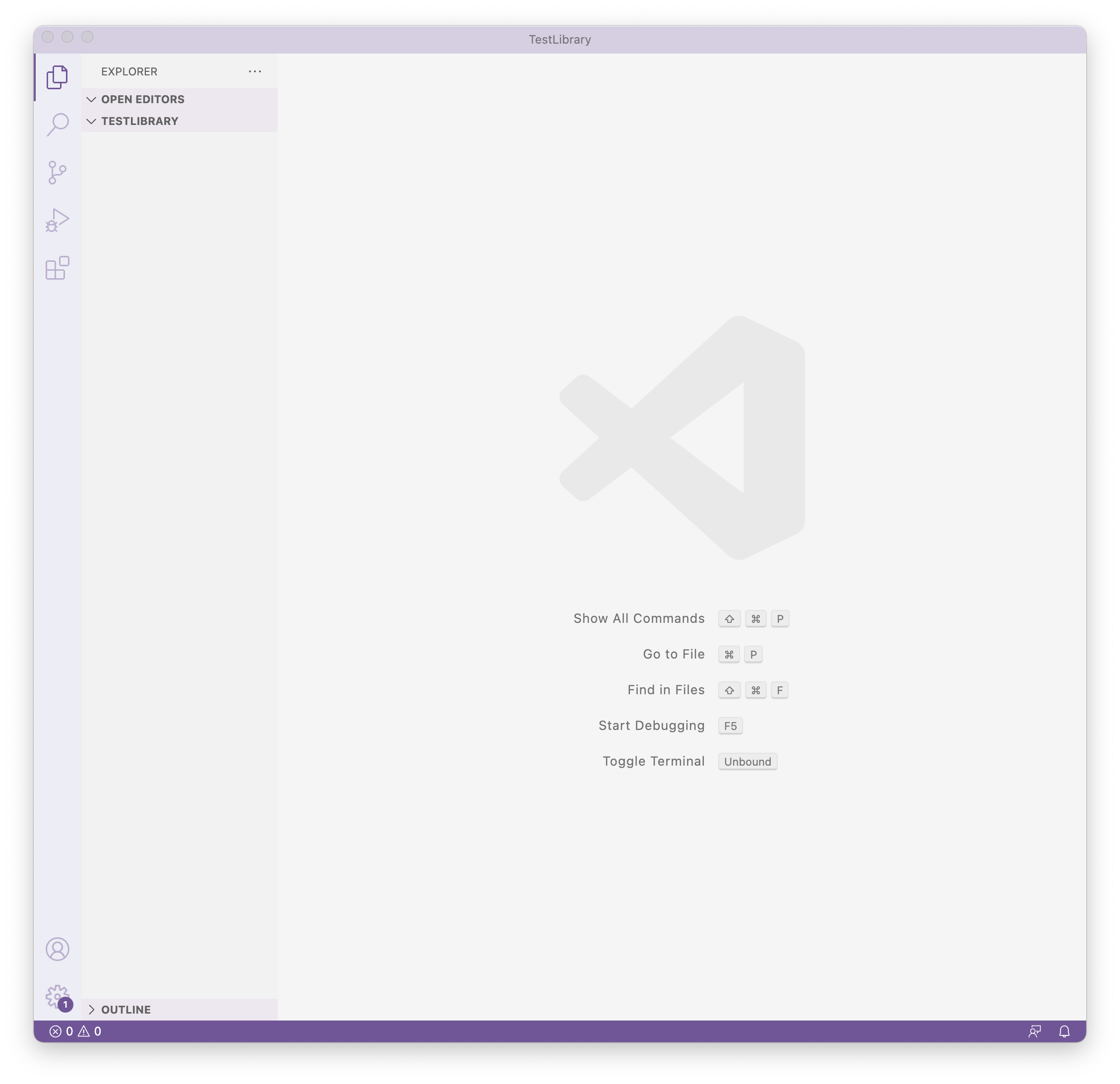
Step 1 - Open Visual Studio Code, and open a folder.
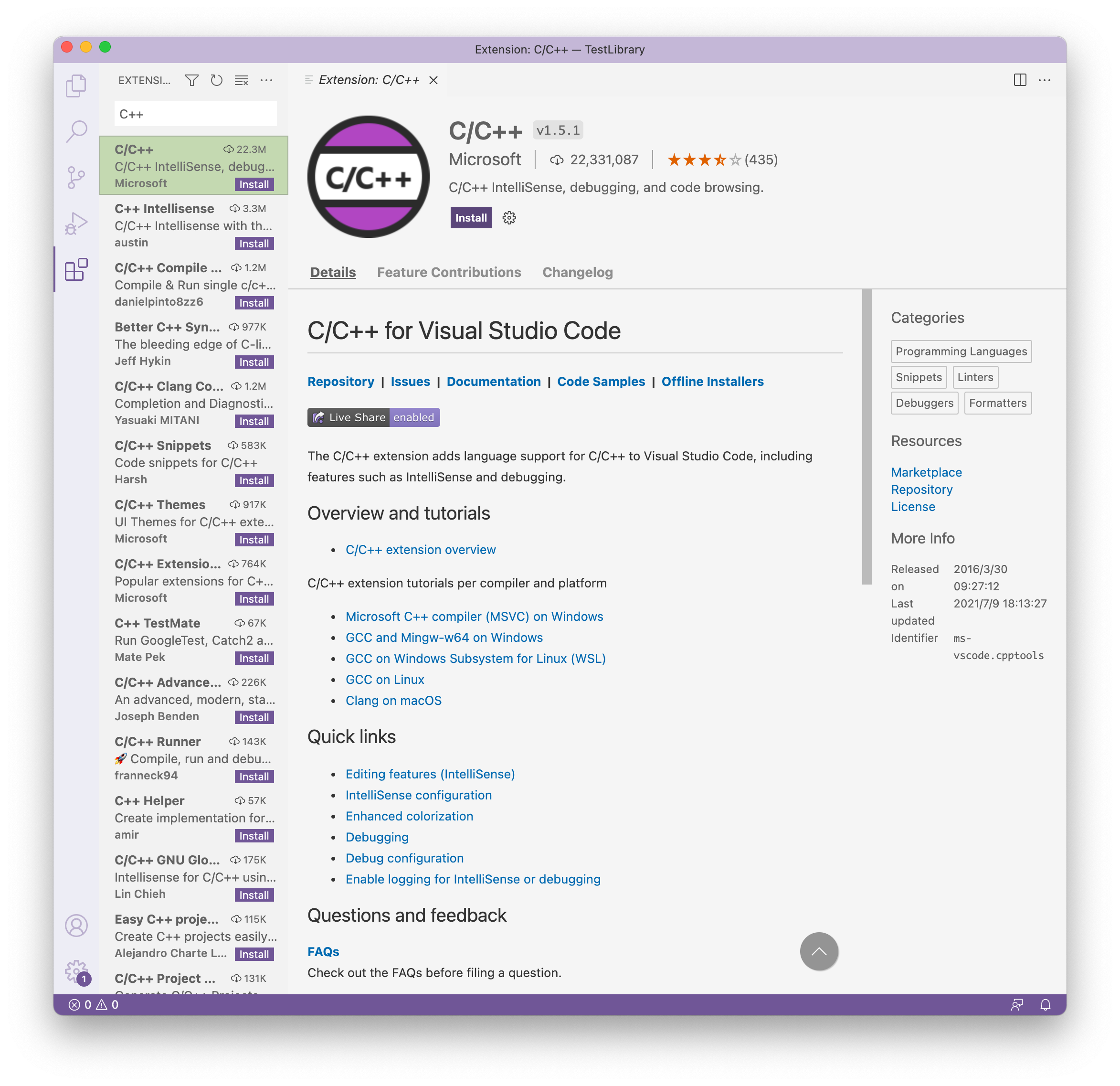
Step 2 - Open the Extensions view, search for C++, and install Cpptool.
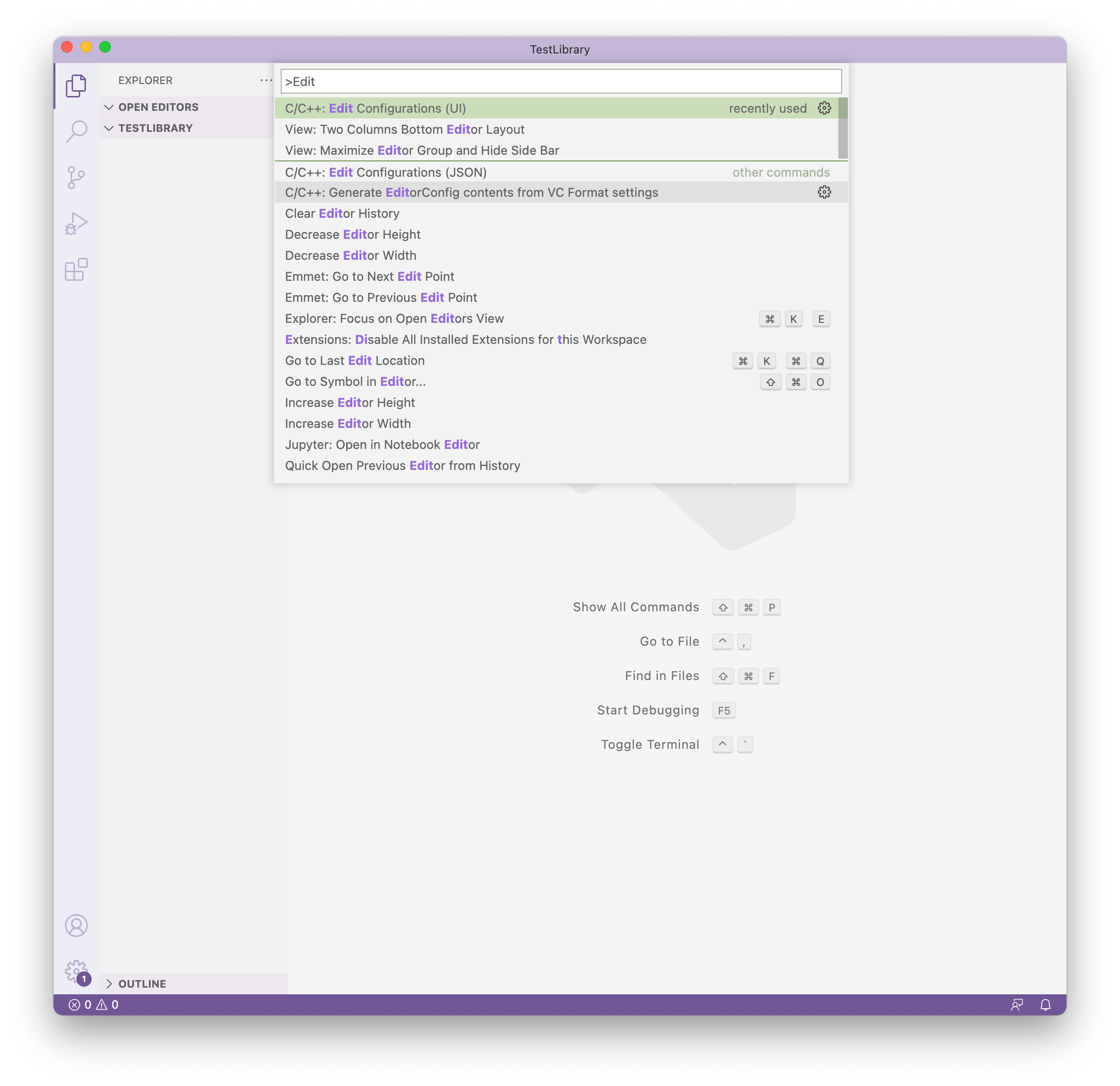
Step 3 - We now need to configure the compiler location and IntelliSense. IntelliSense is a code-writing tool that is aware of your code. Press F1 to open VSCode's Command Palette, type C/C++: Edit Configuration(UI), and run it.
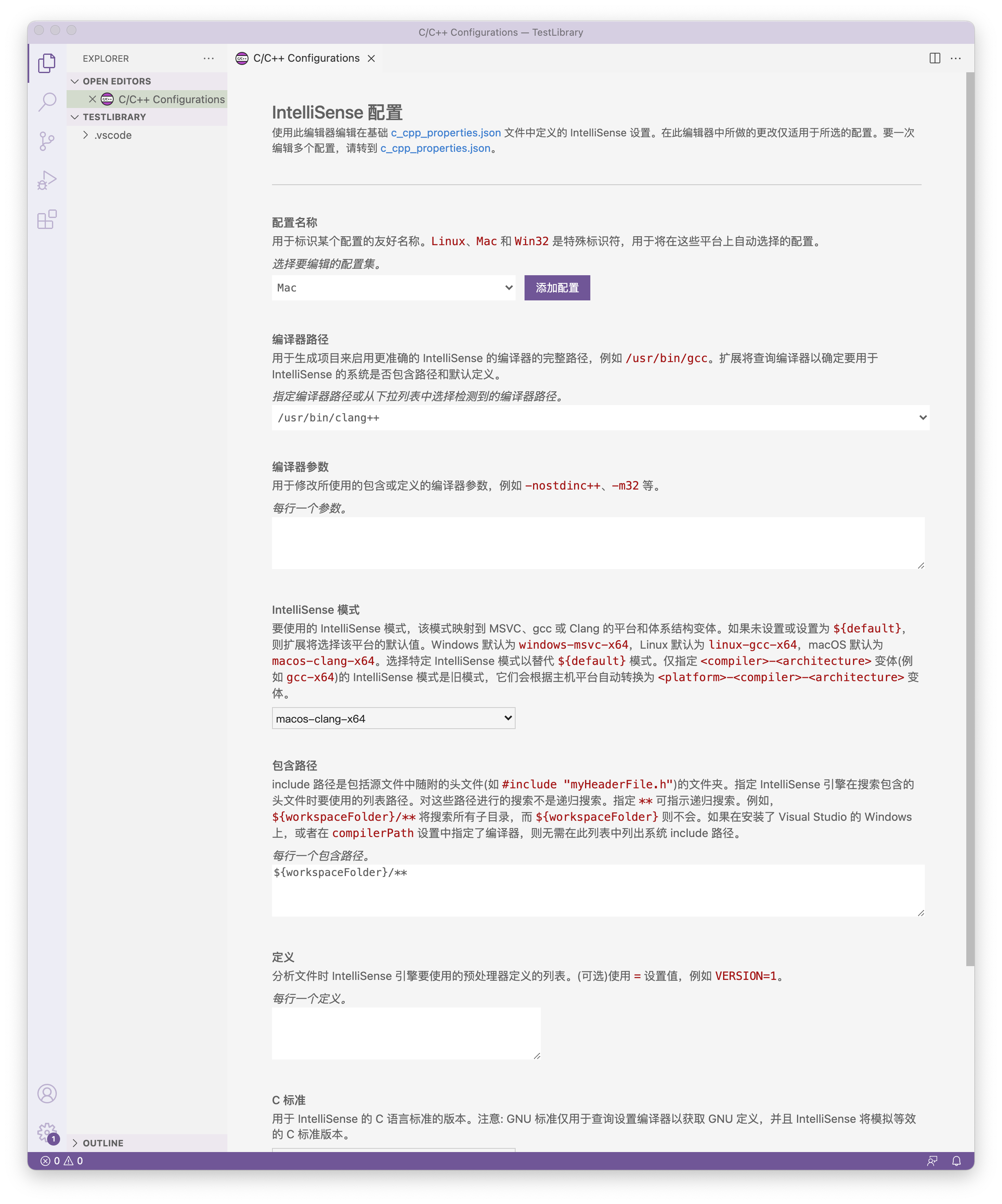
Since macOS no longer supports running 32-bit apps, we configure it the macOS-clang-x64 way. Configure it as shown in the screenshot, and you can see that a .vscode subdirectory has appeared in the working folder, containing the C/C++ configuration for this working directory, c_cpp_properties.json:
```json
{
"configurations": [
{
"name": "Mac",
"includePath": [
"${workspaceFolder}/**"
],
"defines": [],
"macFrameworkPath": [],
"compilerPath": "/usr/bin/clang++",
"cStandard": "c17",
"cppStandard": "c++17",
"intelliSenseMode": "macos-clang-x64"
}
],
"version": 4
}
```
Step 4 - Now we start configuring C/C++ compilation. VSCode supports automated task execution, so we use this feature to automate our compilation.
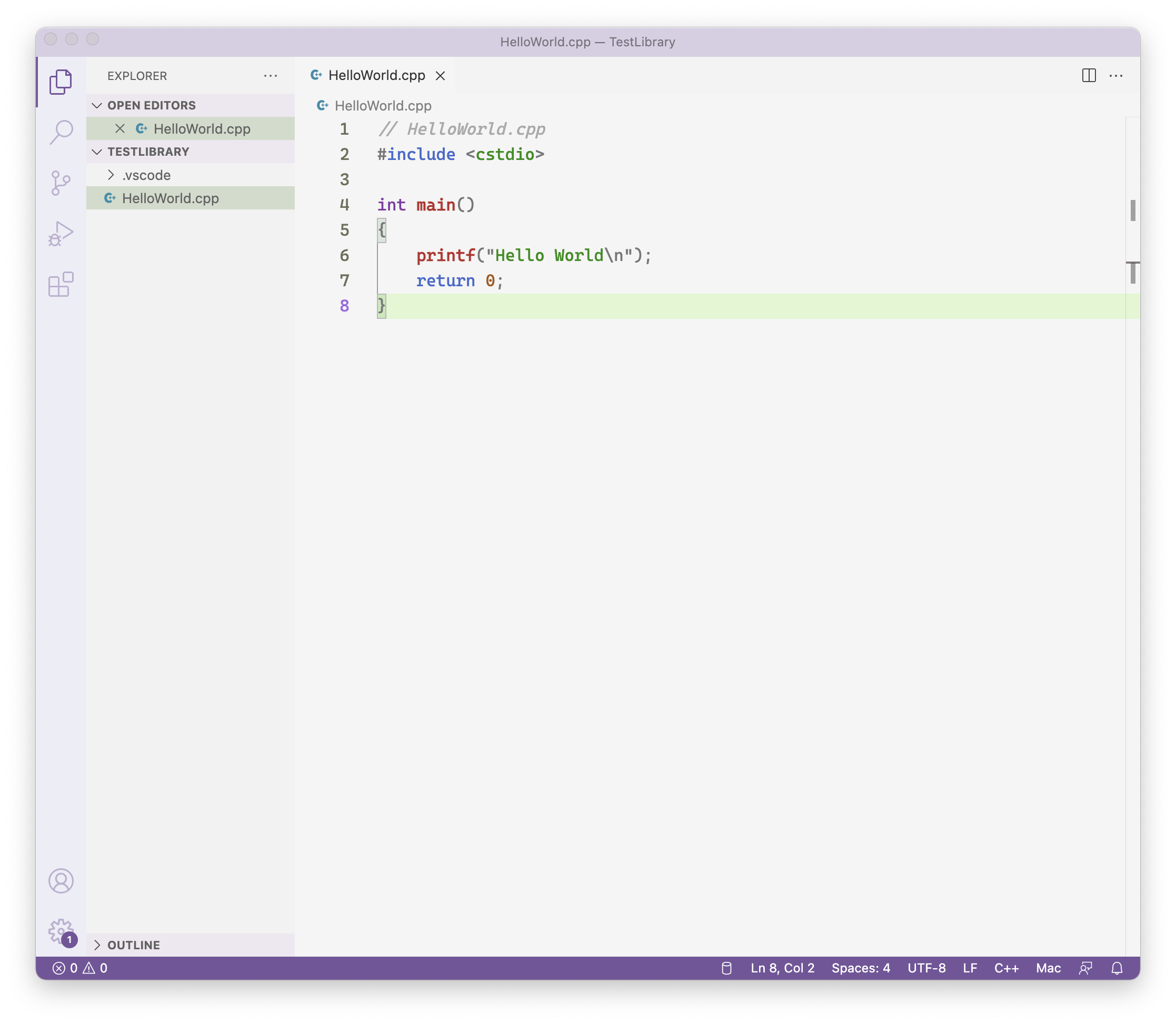
Create a new HelloWorld program for testing. In this article we take configuring clang++ as the example.
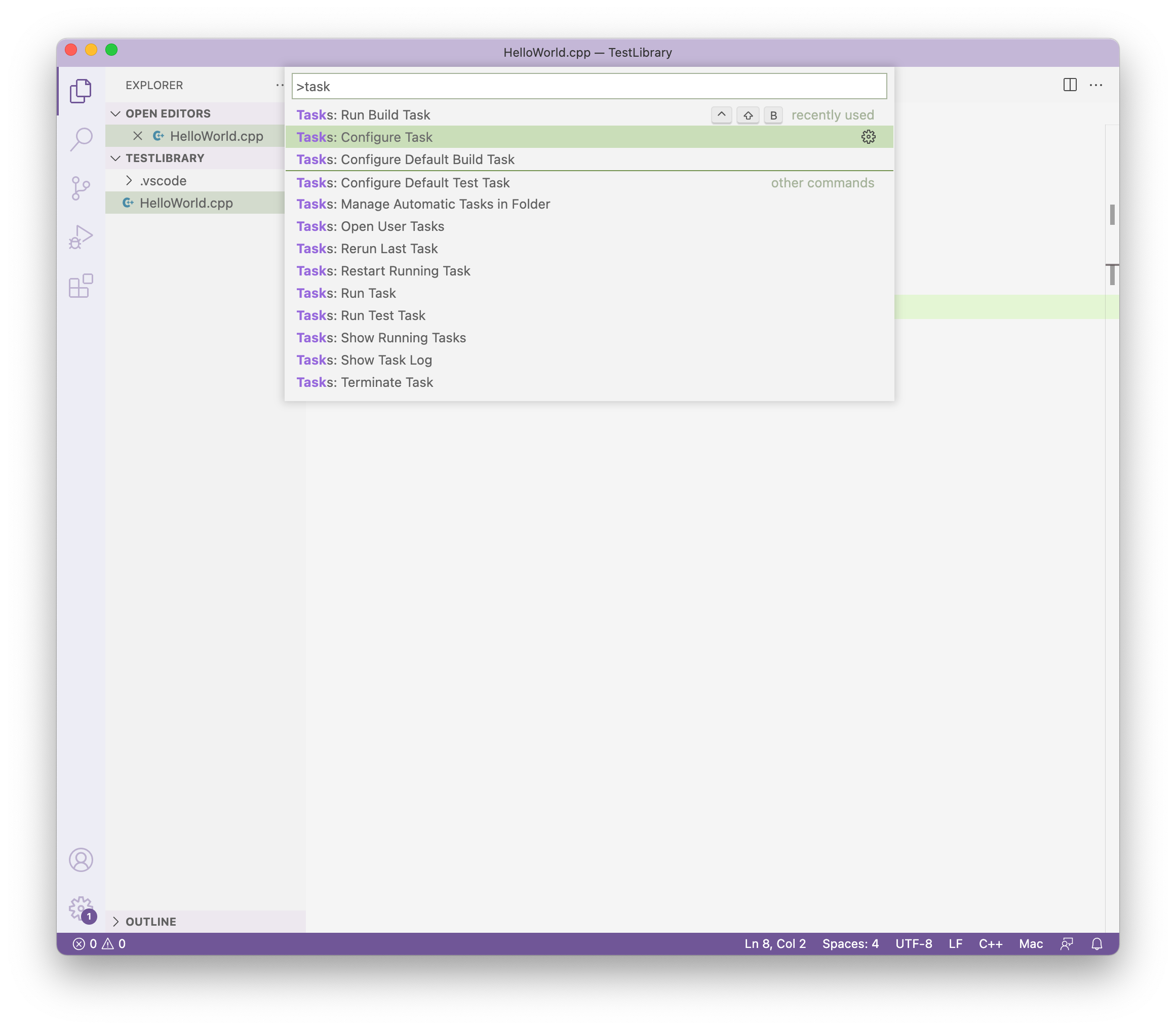
Press F1, type Task, find Configure Task, and open it.
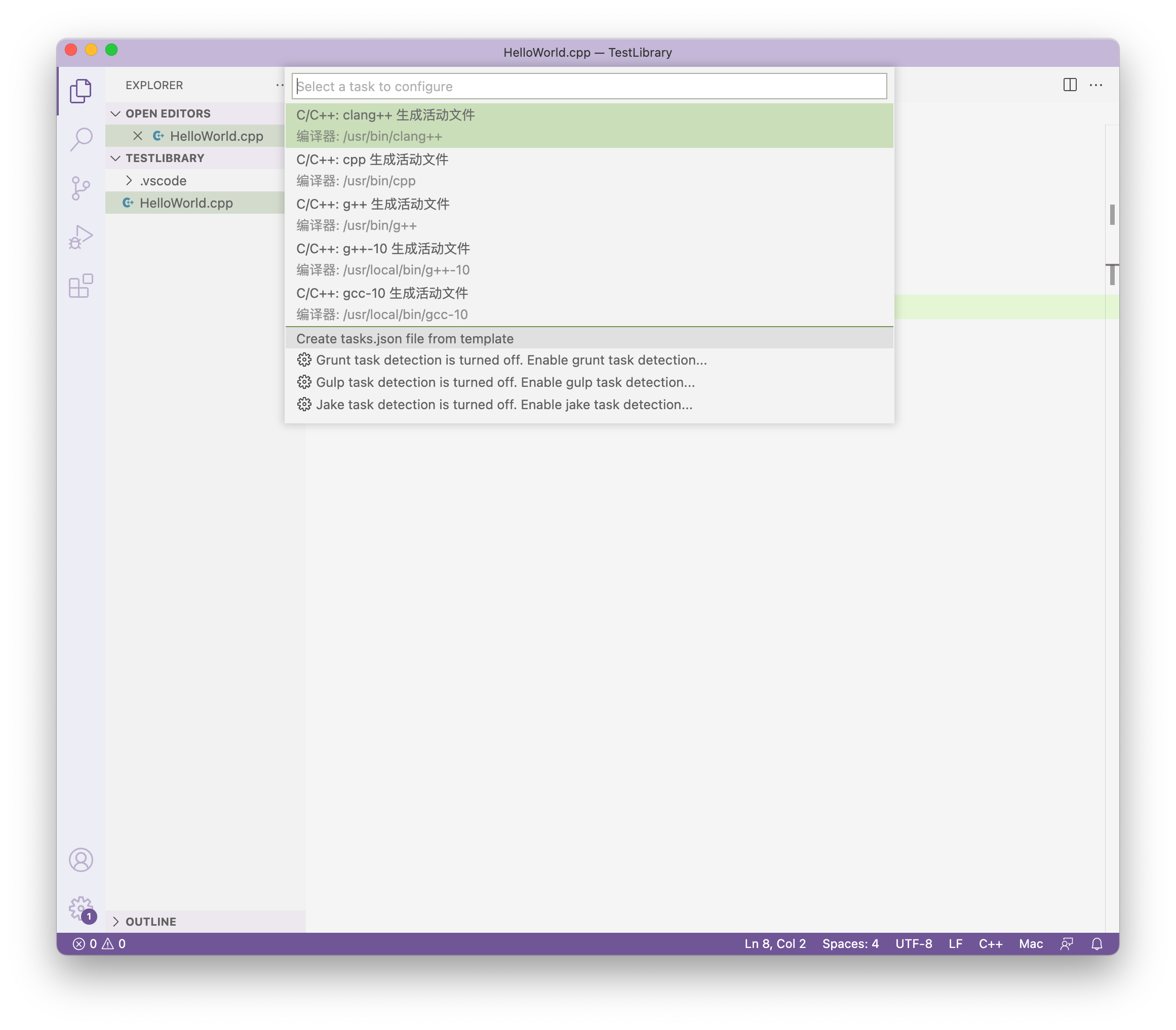
Select Clang++ build active file.
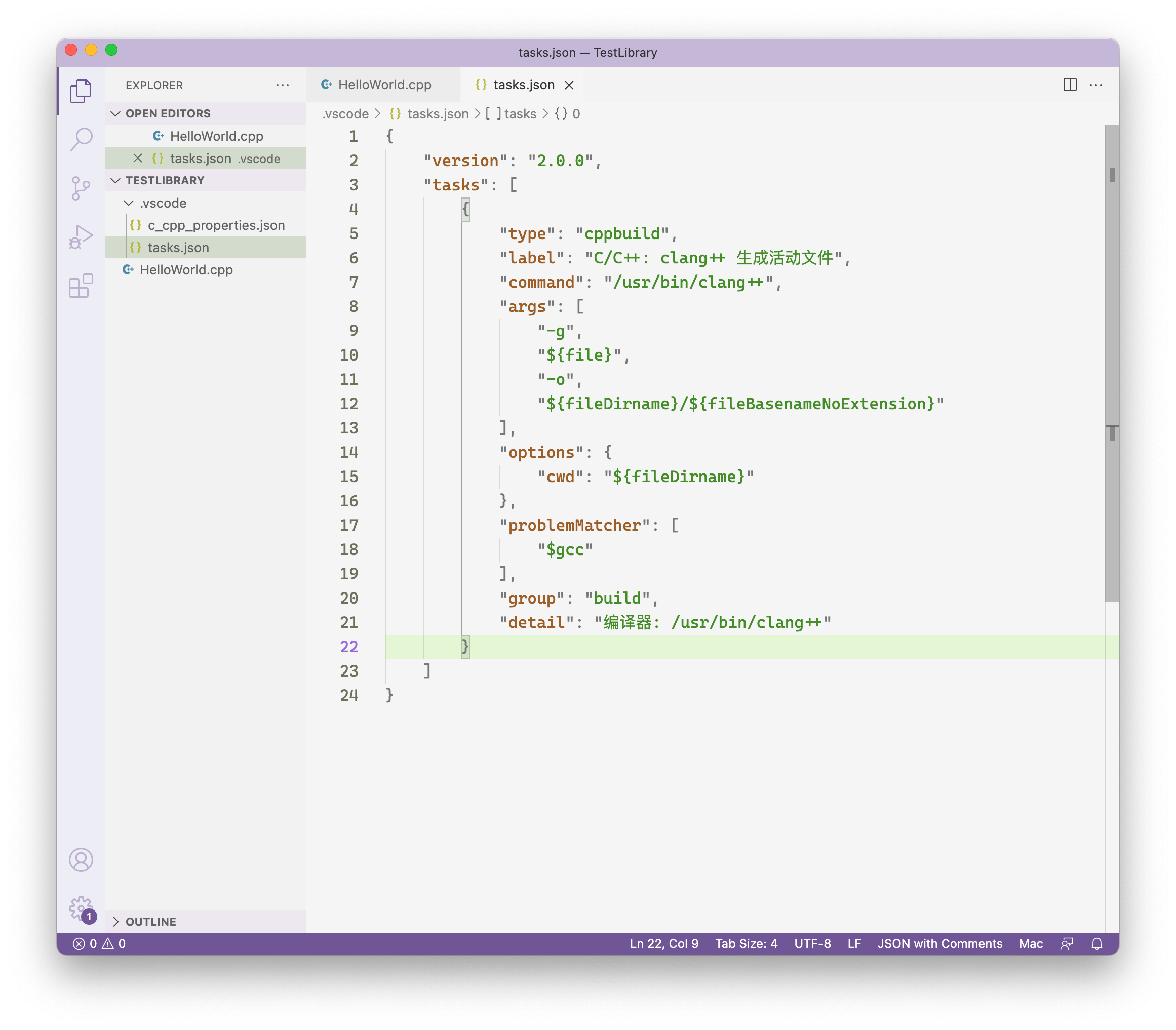
The .vscode/tasks.json file records how tasks are run in this directory, as shown:
Then go back to HelloWorld.cpp, press F1, find Run Build Task and open it, and select Clang++ build.
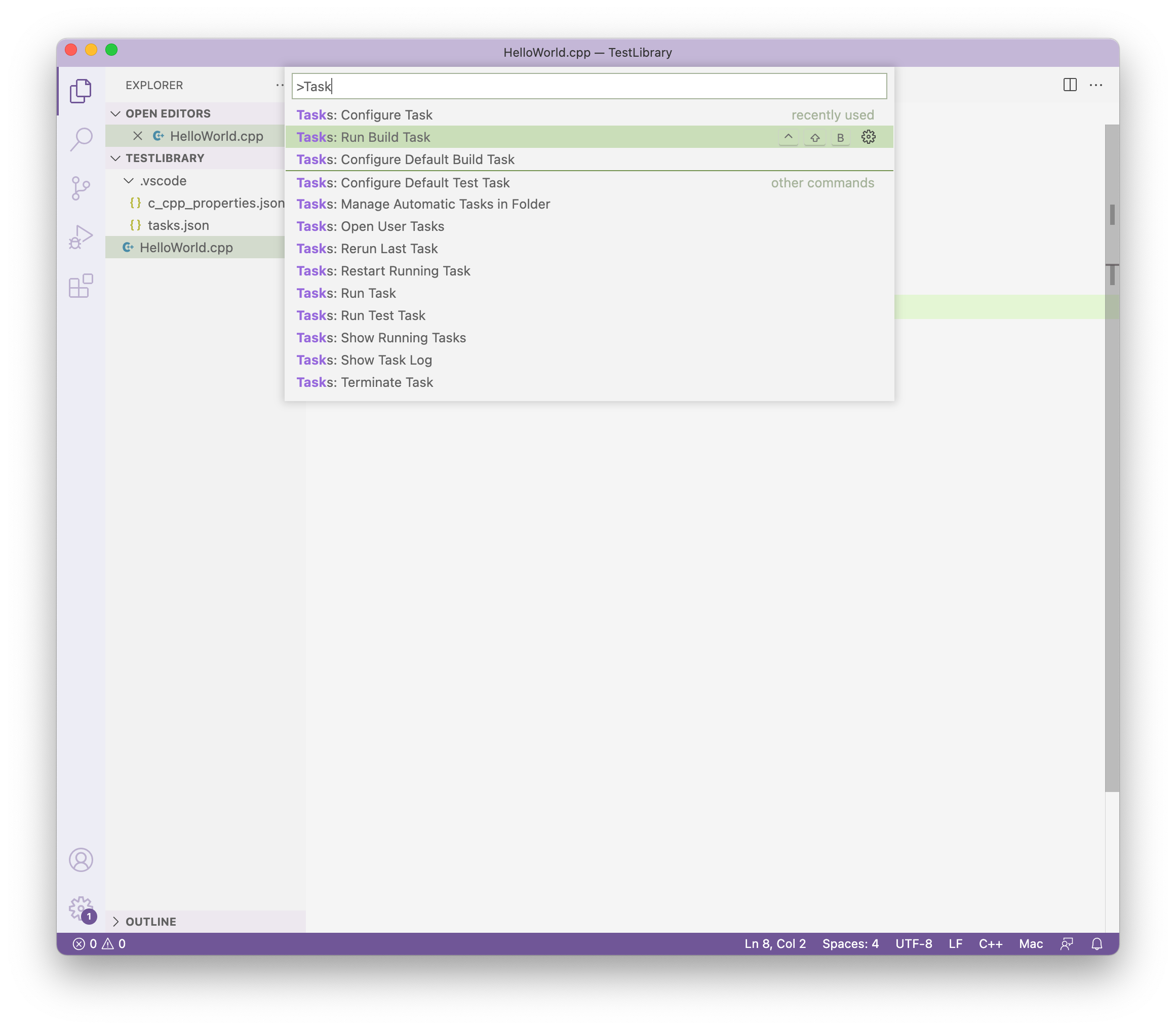
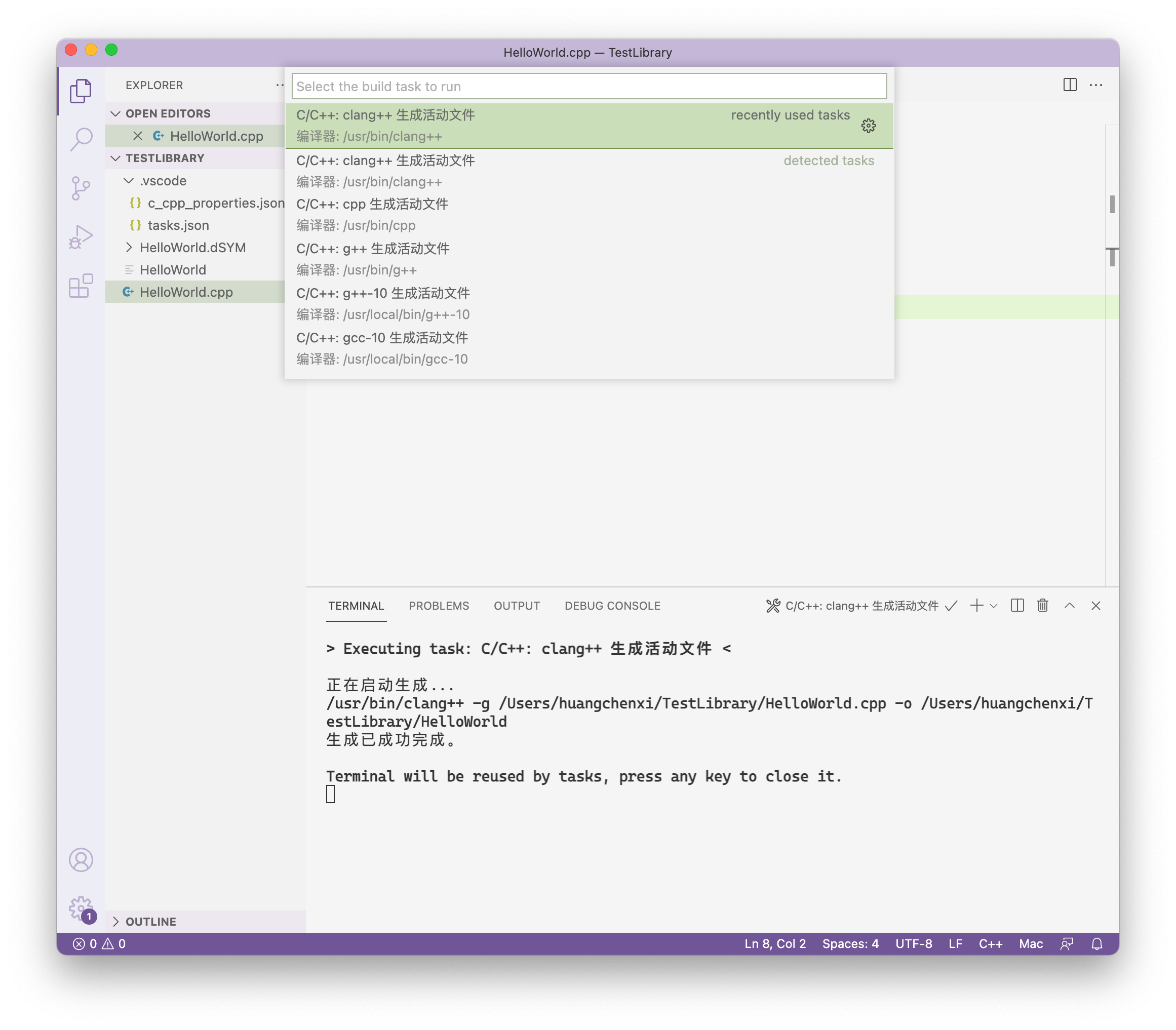
The build configuration is done.
Step 5 - Now we configure debugging. Go to VSCode's Run and Debug view:
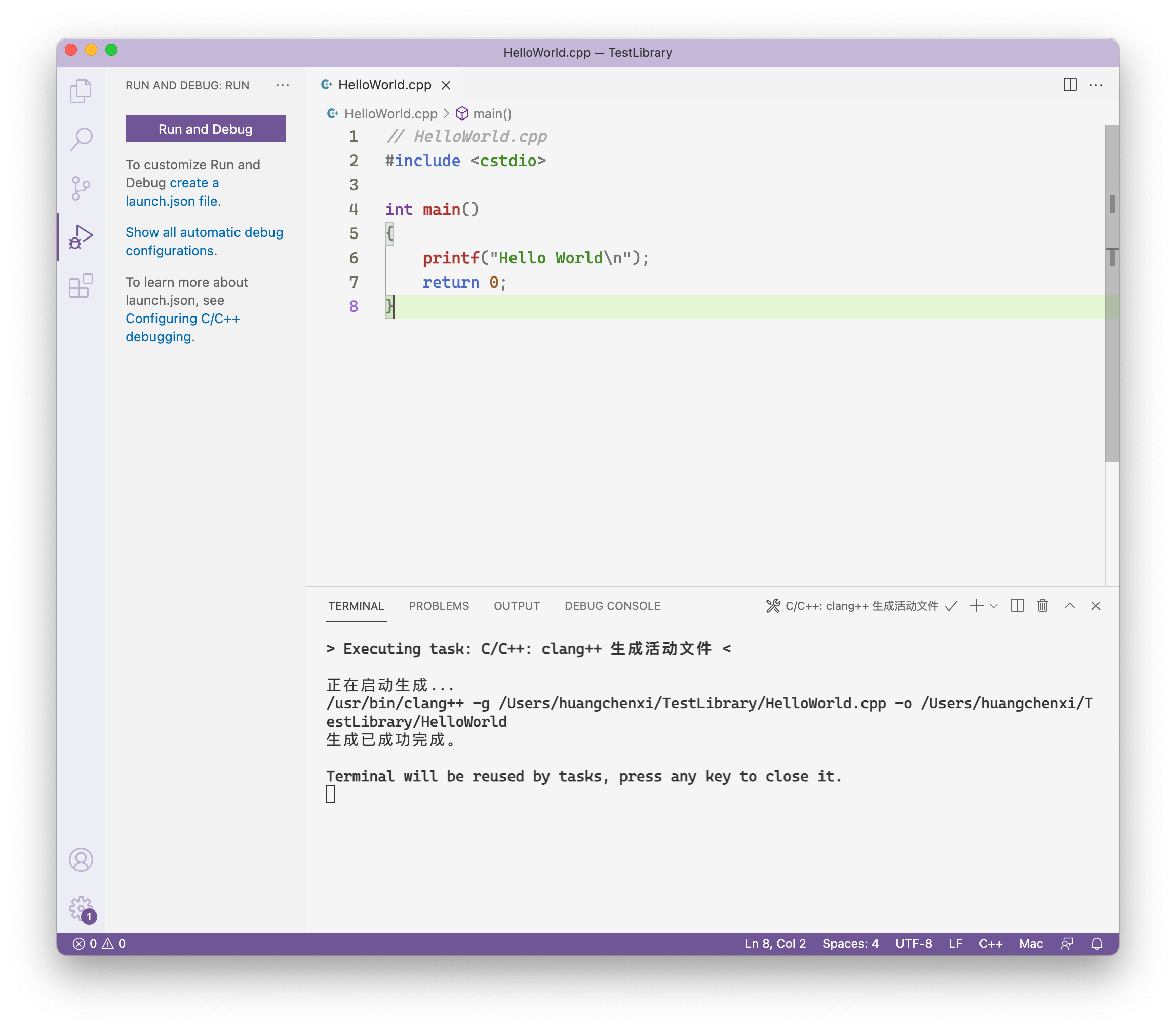
Click “create a launch.json file” and choose “C++ (GDB/LLDB)”:
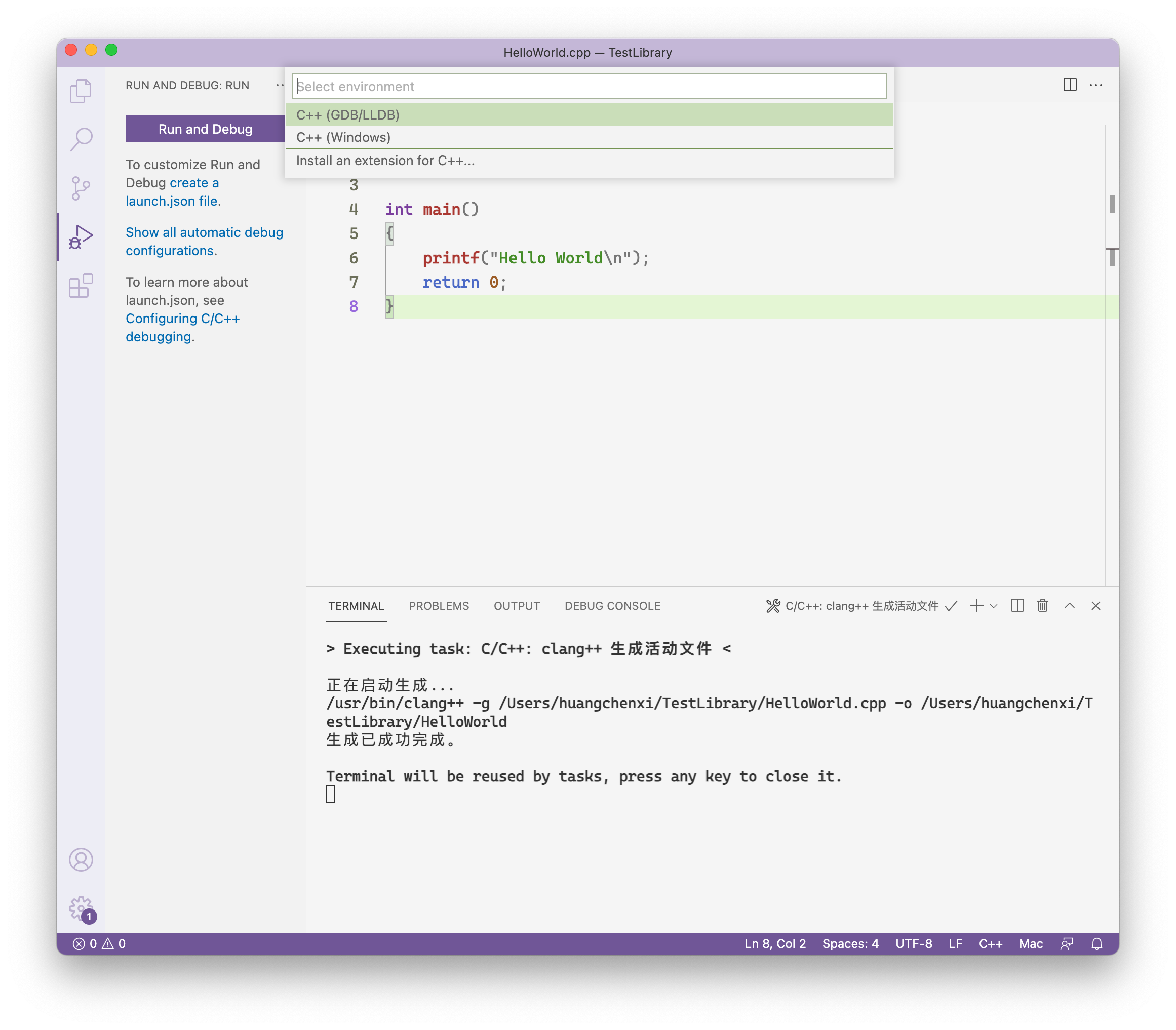
Choose Clang++, and it will then start debugging. Back in .vscode/launch.json, we can see the debug configuration that was just generated.
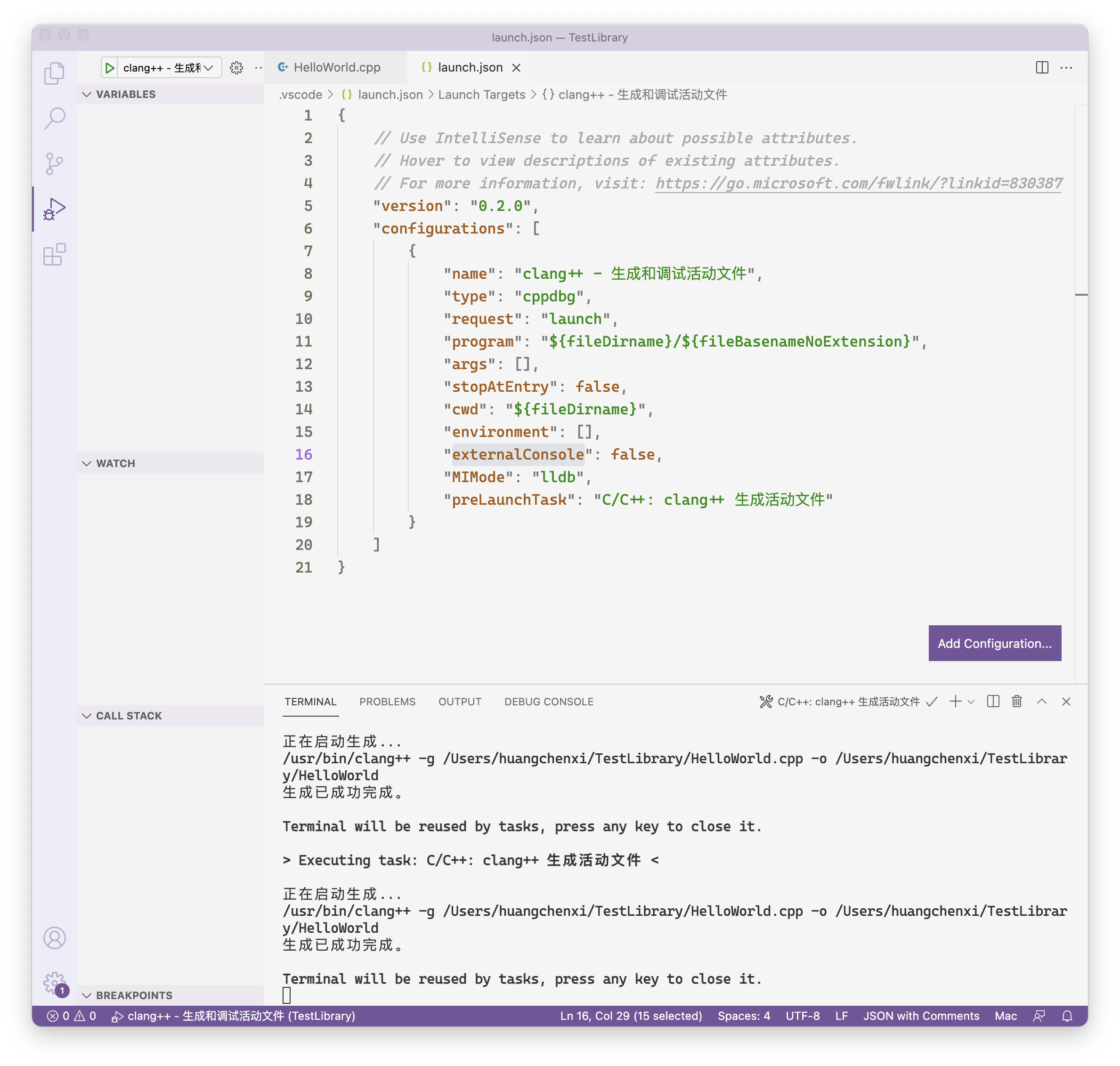
Here, I recommend that you set the externalConsole option to true to enable the external debug window.
That's the end of the configuration.